Square Image: Make Any Image Square Online
Short answer
SquareImage.dev makes any photo square in the browser, free, with no account, no watermark and no upload: the image is processed on the device with Canvas. Four methods cover every case — a blurred background or a solid colour keeps the whole photo visible, a resize stretches it to 1:1, and a manual crop selects the region to keep. It accepts JPEG, PNG, WebP, GIF and BMP, and exports PNG, JPEG or WebP at 512 x 512, 1080 x 1080, 1200 x 1200, 3000 x 3000, the original edge length, or any custom square from 1 to 10,000 pixels.
By SquareImage · Verified
Make any photo or picture square in this browser — your file is never uploaded to a server and never leaves your device. Nothing to install and no account. Keep the whole image with a blurred or solid-color background, resize it to 1:1, or choose the exact area to crop.
How do I make an image square?
- Choose an image. Select or drag in a photo supported by your browser.
- Pick a square method. Use blur, a solid color, resize, or a manual 1:1 crop.
- Adjust the result. Change the blur amount, background color, or crop position when those controls appear.
- Choose the output. Export at 512px, 1080px, 1200px, or 3000px, keep the original edge size, or enter a custom square size from 1 to 10,000 pixels. Select JPEG, PNG, or WebP.
- Download. Save the finished square image directly to your device.
Which way should I square my photo?
Each method solves a different composition problem. Start with blur if you want to preserve every part of a portrait or landscape photo.
| Method | What it does | Best for |
|---|---|---|
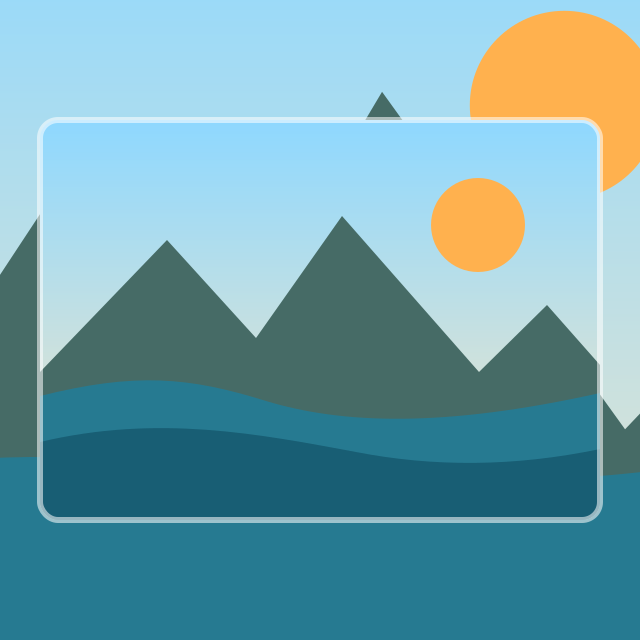
| Blur background | Keeps the complete photo in the center and fills the empty sides with a blurred copy. | Portraits, landscape photos, profile images |
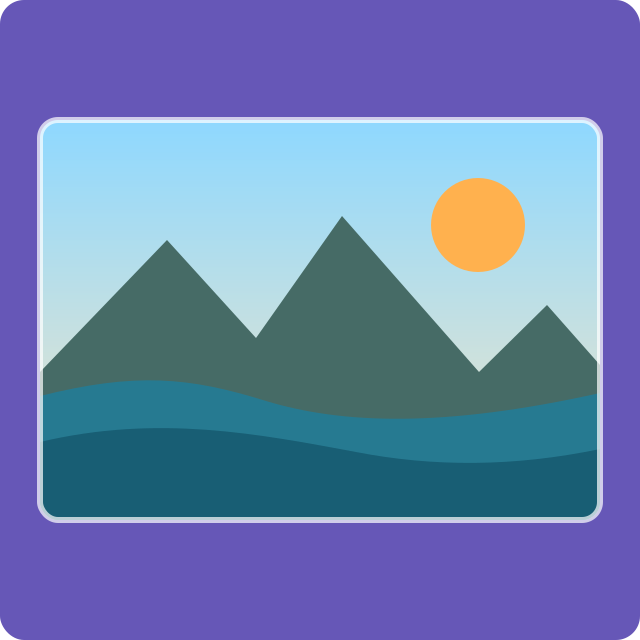
| Solid color | Adds an even color around the uncropped original. | Products, logos, branded posts |
| Resize | Stretches the full image to equal width and height. The original proportions can change. | Patterns or images where distortion is acceptable |
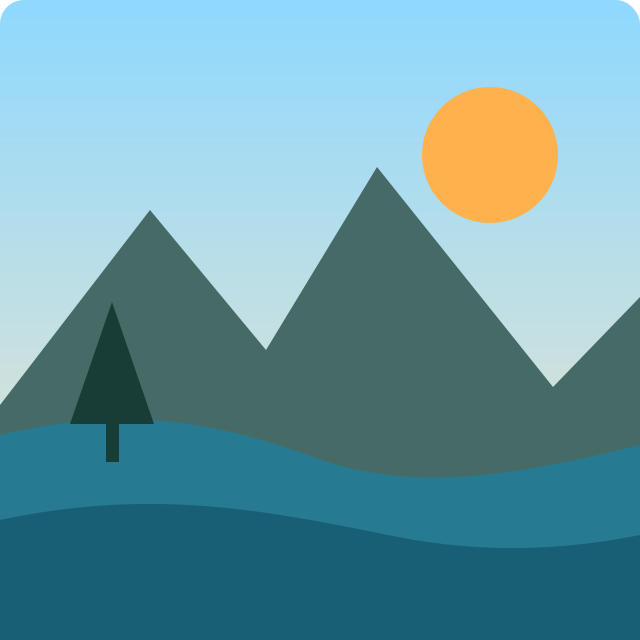
| Crop 1:1 | Removes the outer area while you choose what stays inside the square. | Close-ups and composition-first edits |
What do square image results look like?
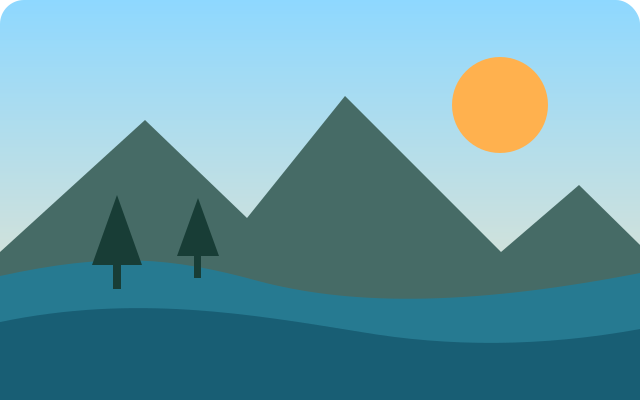
The same wide source can produce very different 1:1 results. Blur and color preserve the entire scene; crop fills the frame by removing the sides.
What output size and file format should I choose?
The default download is a 1200 × 1200 pixel square. Presets also cover 512 × 512, 1080 × 1080, and 3000 × 3000; you can instead keep the image's original edge size or enter a custom size. JPEG is a practical choice for photos, PNG preserves transparency where the chosen method allows it, and WebP usually creates a smaller web-ready file.
A very large custom canvas can exceed the memory available to a mobile browser. If an export near the 10,000-pixel limit fails, choose a smaller size and try again. The main converter handles one image at a time so every result can be reviewed before download.
How do I resize an image to a square?
First decide whether “resize” means changing the canvas or stretching the photo. Blur and color modes fit the complete image inside a square canvas while preserving its proportions; crop mode fills the square by removing the outer area. Square by resizing forces the source itself to equal width and height, so faces and circles can look distorted. Use the exact square image resizer for a step-by-step comparison and 512, 1080, 1200, or 3000-pixel exports.
How do I make a square image without cropping?
Choose Square with blur or Square with color when nothing in the original photo should be removed. These modes fit the full image inside a 1:1 canvas and add space only where the original aspect ratio leaves a gap. Read the complete no-crop square image guide to compare both backgrounds, or open the advanced blurred frame editor for separate foreground scale, background scale, blur, and non-square ratio controls.
How do I crop an image to a square?
Crop mode is useful when the subject already fills most of the photo. Move and zoom the image until the important area sits inside the 1:1 frame. If you need to load several photos and adjust them one after another, use the crop image to square tool; each selected result is still downloaded individually.
Common questions
What is a square image?
A square image has the same width and height, so its aspect ratio is 1:1. Examples include 1080 × 1080 and 1200 × 1200 pixels.
How do I make a photo or picture square online?
Choose a photo, then select blur, color, resize, or a manual 1:1 crop. Preview the result and download it as JPEG, PNG, or WebP at the square size you need.
Can I make a picture square without cutting anything off?
Yes. Use blur or a solid-color background. The complete original remains visible and the tool fills the unused sides of the square canvas. See the step-by-step no-crop guide for the difference between the two backgrounds.
Can I make several square images?
Yes, but the main converter processes one image at a time so you can review each result. Choose, edit, and download one photo, then replace it with the next source image.
Does making an image square change its quality?
Any resize or recompression can change image detail. For the best result, begin with a high-resolution source, avoid unnecessary upscaling, and choose PNG when you need lossless output or transparency.
Are my photos uploaded?
No. The conversion runs locally with browser image APIs. Closing or refreshing the page clears the current editing session.
Which file types can I upload?
The uploader accepts image types your current browser can decode, commonly JPEG, PNG, WebP, GIF, and BMP. Animated files are treated as a still image. Downloads are available as JPEG, PNG, or WebP.
What square image size should I use?
There is no universal size for every destination. A 1080 × 1080 or 1200 × 1200 image is a useful general-purpose starting point. Check the current requirements of the platform or print service where the image will be used. See the square image size guide for a concise explanation of 1:1 dimensions.
Square image guides by destination
Each guide covers one destination: the size it expects, how it crops an upload, and which square method suits it. The converter above is on every one of these pages.
- Square image sizes and dimensionsCompare 512, 1080, 1200, and 3000-pixel square exports and when to use each.
- Social media image sizesCurrent image dimensions across the major platforms in one table.
- Make an image square without croppingKeep the complete photo visible with a blurred or solid-color background.
- Resize an image to an exact squareExport 512, 1080, 1200, 3000, original, or custom 1:1 pixel dimensions.
- Make square images for Instagram1080 × 1080 feed posts, profile pictures, and a consistent grid.
- Make square images for FacebookSquare feed posts, page profile images, and how the feed crops them.
- Make a square image for X (Twitter)Square images in the timeline and the profile photo circle crop.
- Make square product photosSquare product photos for marketplaces that reject other ratios.
- Make wedding photos squareTurning portrait wedding shots into squares without losing the couple.
- Make square food photosSquare food photos for menus, delivery apps, and recipe posts.
- Make square images for a portfolioSquare exports for portfolios, brand assets, and case study grids.
Other image tools on this site
- Crop Image to SquareDrag a fixed 1:1 crop frame over one or several source photos.
- Blur Image or Add a Blurred FrameBlur a whole photo or control a sharp image over a blurred backdrop.
- Rounded CornersRound the corners of an image and keep the cut-out transparent.
- Full DP MakerA whole photo as a profile picture, with no crop on WhatsApp.
- Instagram Grid MakerSplit one photo into 2×2 to 4×4 tiles for a feed mosaic.
- Drawing GridOverlay a numbered grid on a reference photo for grid drawing.
- Solid Color BackgroundGenerate a plain color image at any size, no upload needed.
Every tool on this site draws your photo onto an HTML canvas and reads the result back out — that is the whole pipeline, which is why nothing is uploaded and why the export size behaves the way it does. The browser's own documentation describes the drawing step:
“drawImage() will always use the source element's intrinsic size in CSS pixels when drawing, cropping, and/or scaling.”
Sources
- MDN Web Docs — CanvasRenderingContext2D: drawImage() method
- MDN Web Docs — HTMLCanvasElement: toBlob() method
- WHATWG — HTML Standard — The canvas element
Links checked 2026-09-03.