Add a White Border to a Photo
Add a 20 px white border on all four sides, or choose your own widths and color. The canvas grows; your photo stays the same size.
How can I add a white border to a photo?
SquareImage.dev adds a 20 px white border to all four sides by default, without cropping, stretching or forcing the photo into a square. Choose separate widths or pad to 1:1, 4:5 or 16:9 without scaling the photo. Set a custom color or use a transparent border. The browser exports one PNG at a time, with a limit of 10,000 px per side and 24 megapixels. The photo is not uploaded.
By SquareImage · Verified
What does a 20 px white border look like?
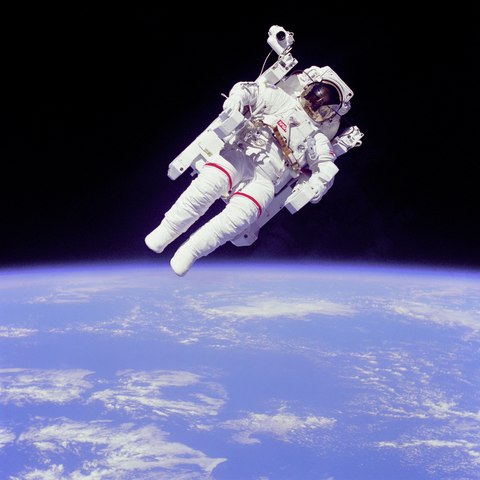
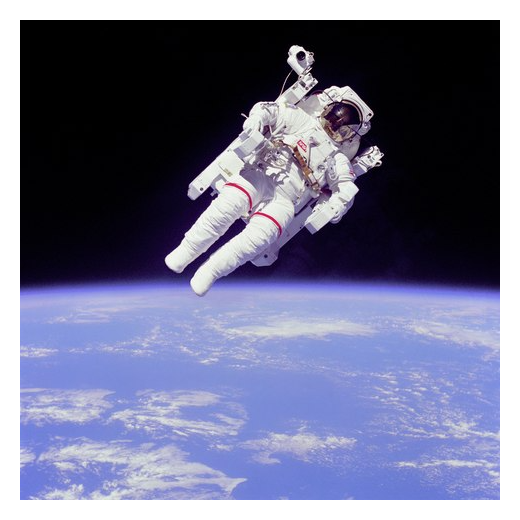
Source: NASA photograph S84-27017, public domain in the United States, via Wikimedia Commons. The source was resized for this example. The after image was exported with Equal border at 20 px and white (#FFFFFF).
Which border mode should I use?
- Equal border gives each edge the same margin. A 20 px border adds 40 px to both the width and the height.
- Custom sides sets top, right, bottom and left separately. Set any side to 0 to leave it unchanged. The output adds left plus right to the original width, and top plus bottom to the original height.
- Aspect ratio padding fits the whole photo inside the smallest canvas with the exact ratio you choose: 1:1, 4:5 or 16:9. It centers the photo without resizing it. If the spare space is odd, the extra pixel goes on the right or bottom. These are layout choices, not upload requirements.
Need a fixed pixel size rather than a border? Use the exact square image resizer. For a blurred background instead of a solid color, see how to make an image square without cropping.
Frequently asked questions
Does adding a white border make my photo square?
No. Equal border adds the same number of pixels to all four edges, regardless of the photo’s shape. Choose 1:1 under Aspect ratio padding if you want a square canvas without cropping or scaling the photo.
Can I add a border to only one side of an image?
Yes. Choose Custom sides, enter the width you want on that side, and set the other three widths to 0.
Can I download a photo with a transparent border?
Yes. Select Transparent and download the PNG. The new border is clear, and any existing transparency in the image is preserved even if you choose a solid border color.
Every tool on this site draws your photo onto an HTML canvas and reads the result back out — that is the whole pipeline, which is why nothing is uploaded and why the export size behaves the way it does. The browser's own documentation describes the drawing step:
“drawImage() will always use the source element's intrinsic size in CSS pixels when drawing, cropping, and/or scaling.”
Sources
- MDN Web Docs — CanvasRenderingContext2D: drawImage() method
- MDN Web Docs — HTMLCanvasElement: toBlob() method
- WHATWG — HTML Standard — The canvas element
- Wikimedia Commons — Bruce McCandless II during EVA in 1984 (NASA S84-27017)
Links checked 2026-11-19.
Other image tools on this site
- Square Image OnlineMake any image square with blur, solid color, resize, or a manual 1:1 crop.
- Crop Image to SquareDrag a fixed 1:1 crop frame over one or several source photos.
- Blur Image or Add a Blurred FrameBlur a whole photo or control a sharp image over a blurred backdrop.
- Rounded CornersRound the corners of an image and keep the cut-out transparent.
- Full DP MakerA whole photo as a profile picture, with no crop on WhatsApp.
- Instagram Grid MakerSplit one photo into 2×2 to 4×4 tiles for a feed mosaic.
- Drawing GridOverlay a numbered grid on a reference photo for grid drawing.
- Solid Color BackgroundGenerate a plain color image at any size, no upload needed.
- Favicon GeneratorGenerate a multi-size favicon.ico (16/32/48) plus iOS and Android app icons in one ZIP.
- Image to ICO ConverterPack PNG, JPG, WebP or SVG artwork into a transparent multi-resolution Windows .ico file.
- Circle Crop ImageCrop a photo into a 1:1 circle with transparent corners and an optional border ring.
- Image Shape ChangerCrop a photo into a circle, heart, star, rounded square, diamond or hexagon.
- Mirror ImageFlip a photo left to right, top to bottom, or across both axes at its original dimensions.